
How I Finally Reset My Fujifilm Apeos C325z's Admin Password
A Step-by-Step Guide on performing a Factory Reset (NVM Reset) on the Fujifilm C325z/328dw Printer
The Fujifilm Apeos c325z is a great printer. I've had it for a few years and so far I have had no complaint – that is except for one thing:
The printer's web portal forces you to set a new password the first time you log in using the defaults (a good security practice, I know). Naturally, a few months gone by, and when I had to change a few things in the SMTP settings I realized I had forgotten the password.
There is nothing in the manual/documentation on how to reset the password.
I tired all the options in "Device" > "Maintenance" > "Initialize NVM" on the machine and nothing worked.
I tried calling Fujifilm Hong Kong support - and they were helpful up to a point: they showed me how to get into the “Special Boot Menu” and told me to use Password Initialize which didn't work.
They told me that if that didn't work then I would have to pay to have their technician come fix it.
No. I am not gonna pay to have access to hardware I own.
After a lot of digging - which involved (amongst many other things and lots of Googling) reading through some sort of Vietnamese vendor training presentation I found on Scribd [1] and then struggling to Google Translate it - the real fix turned out to be in a hidden service menu - which is quite typical of printers - the trick usually is on figuring out how to access them more than anything.
Once that part is figured out, it’s actually pretty simple.
Step‑by‑step: how to actually reset the password
Step 1: Turn the printer off
Let it shut down fully – screen black, lights off.
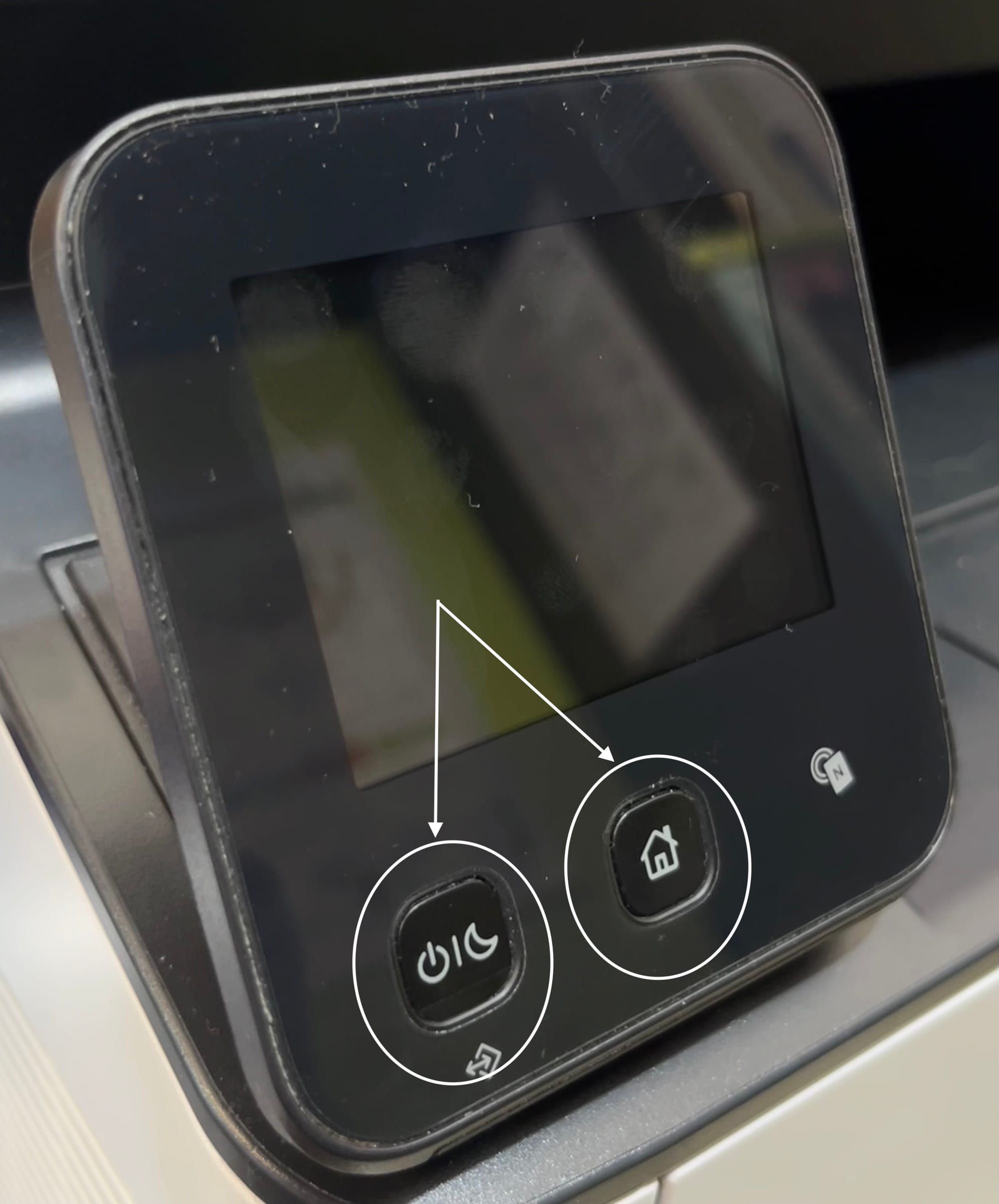
Home and Power until "Special Boot Menu" shows upStep 2: Enter the special boot menu
- Press and hold the both Home button (the little house) and the Power button.
- Keep holding them until a "special boot menu" appears instead of the normal UI.
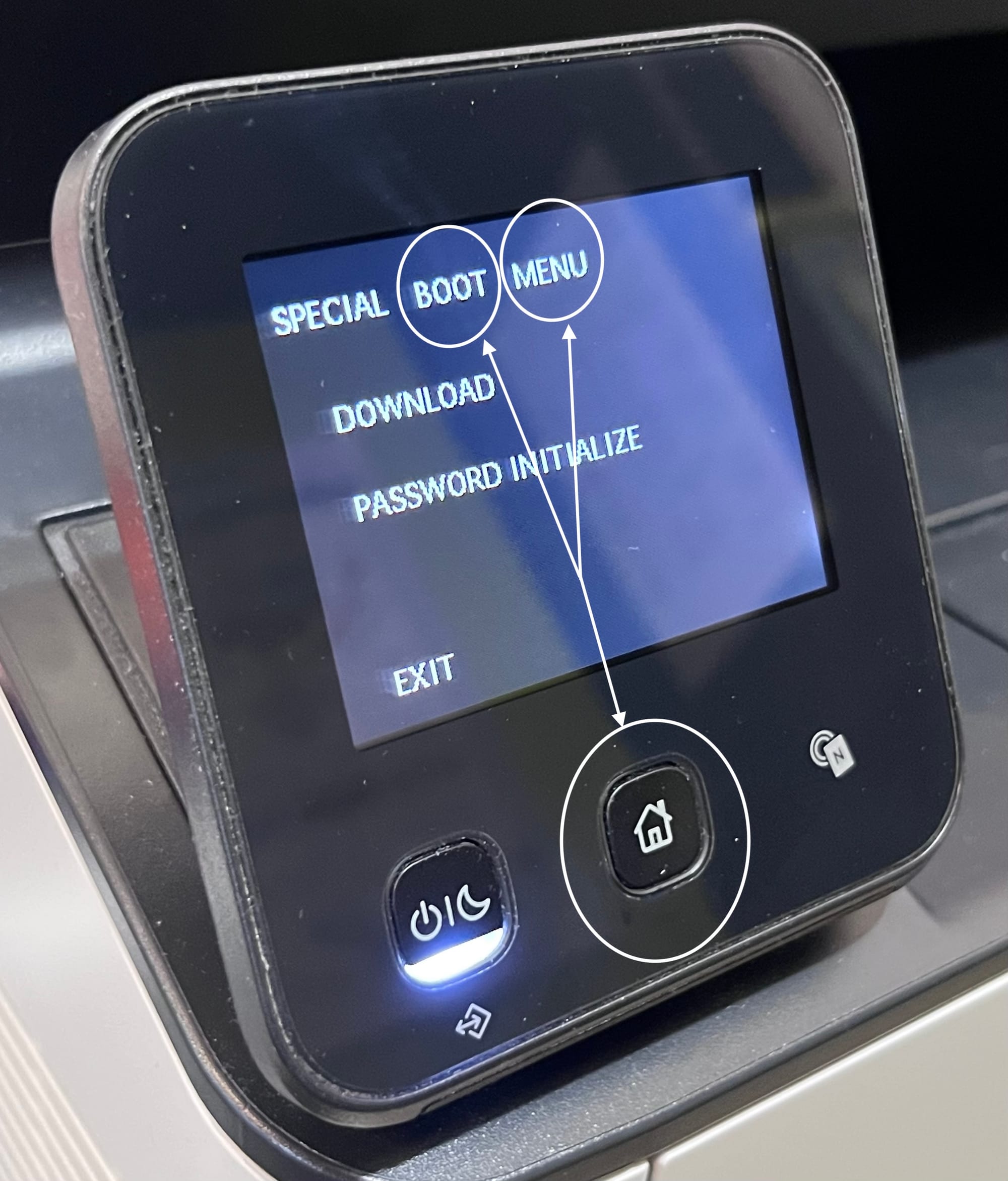
BOOT, MENU and the Home buttonStep 3: Trigger CE Diag
Now this is the tricky part: on the special menu you’ll see 3 options: DOWNLOAD, PASSWORD INITIALIZE and EXIT. Ignore the options.
What you need to do is: using 3 fingers - hold down BOOT, MENU and the Home (little house) button. (positions as circled in the picture above)
If you get it right - a num pad will show up.
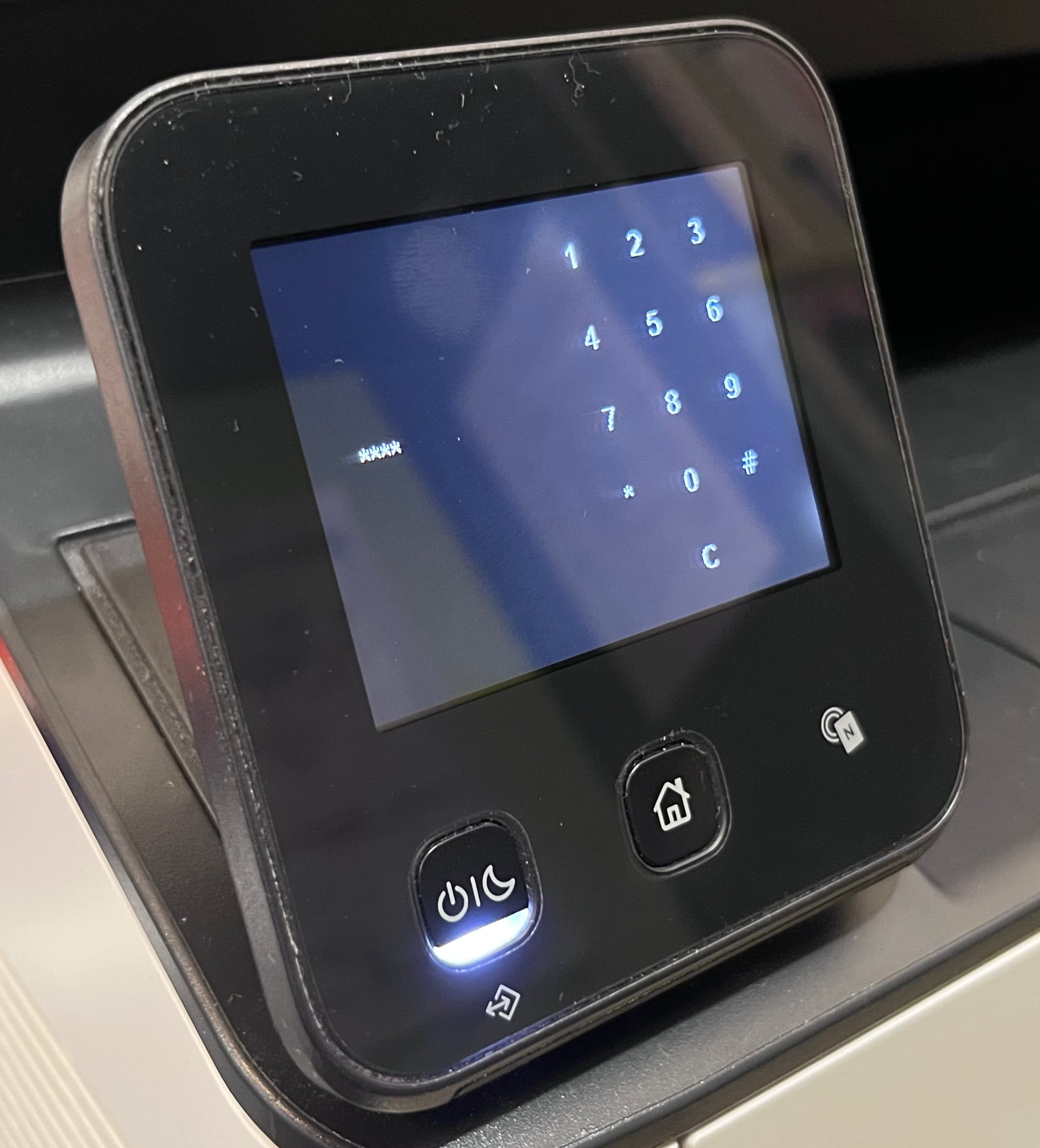
Step 4: Enter the magic code
On the keypad that popped up, type 1739#.
Don't ask me why that's the code - I have no idea either.
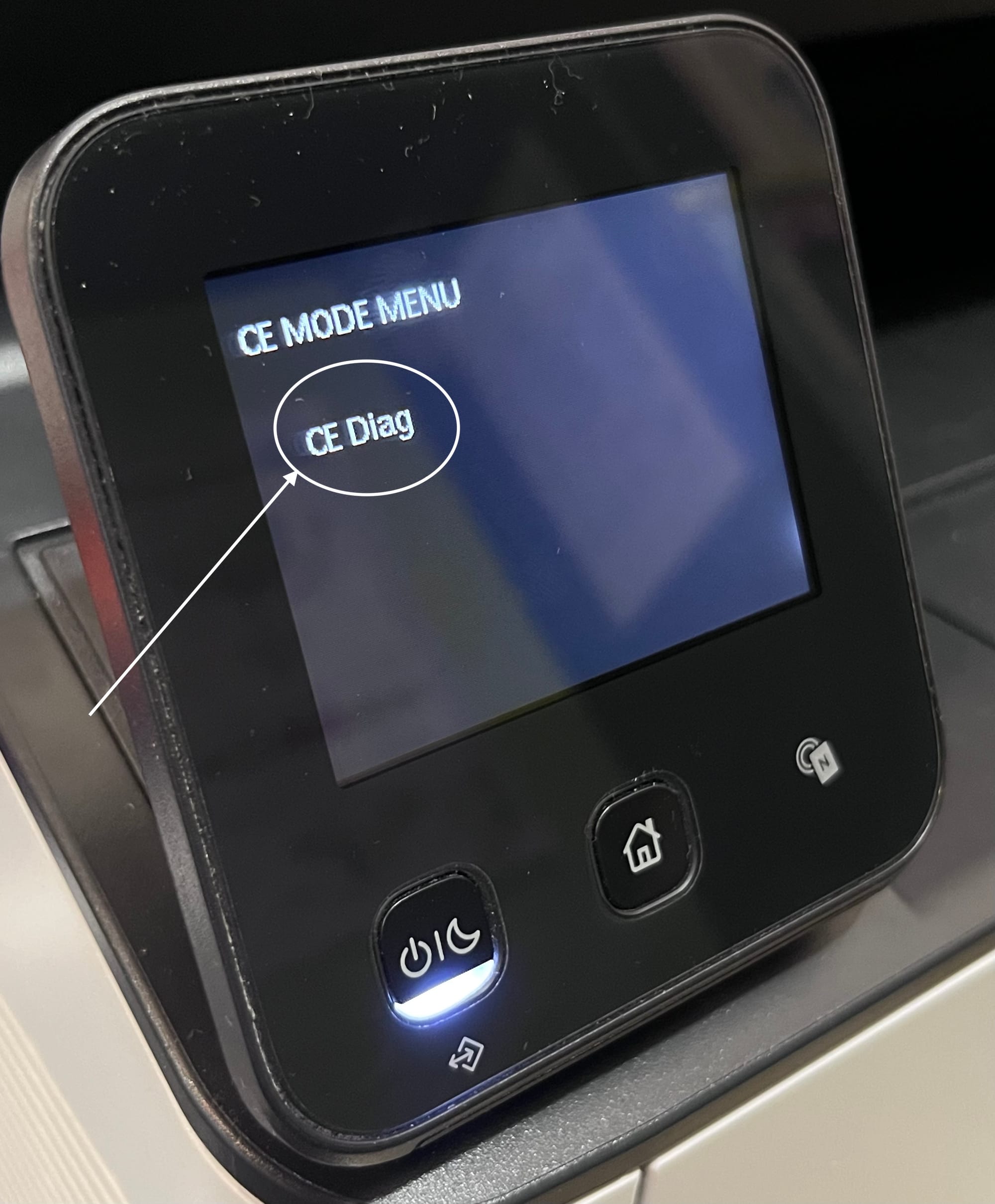
CE Diag in the CE Mode MenuStep 5: Resetting the NVM (Factory Reset) in the CE Menu
- A CE Mode Menu then pops up - you need to tap CE Diag to enter the service menu.
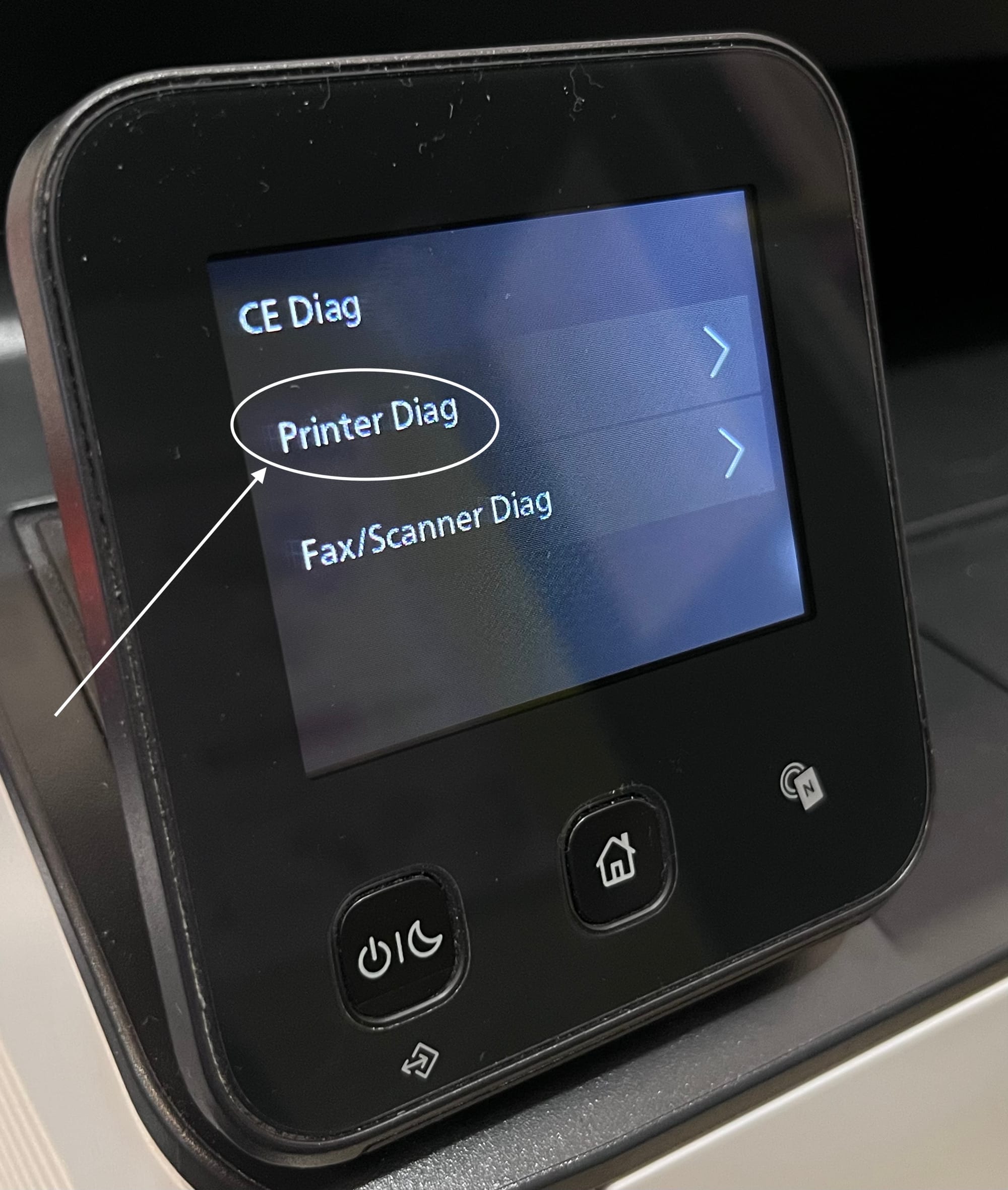
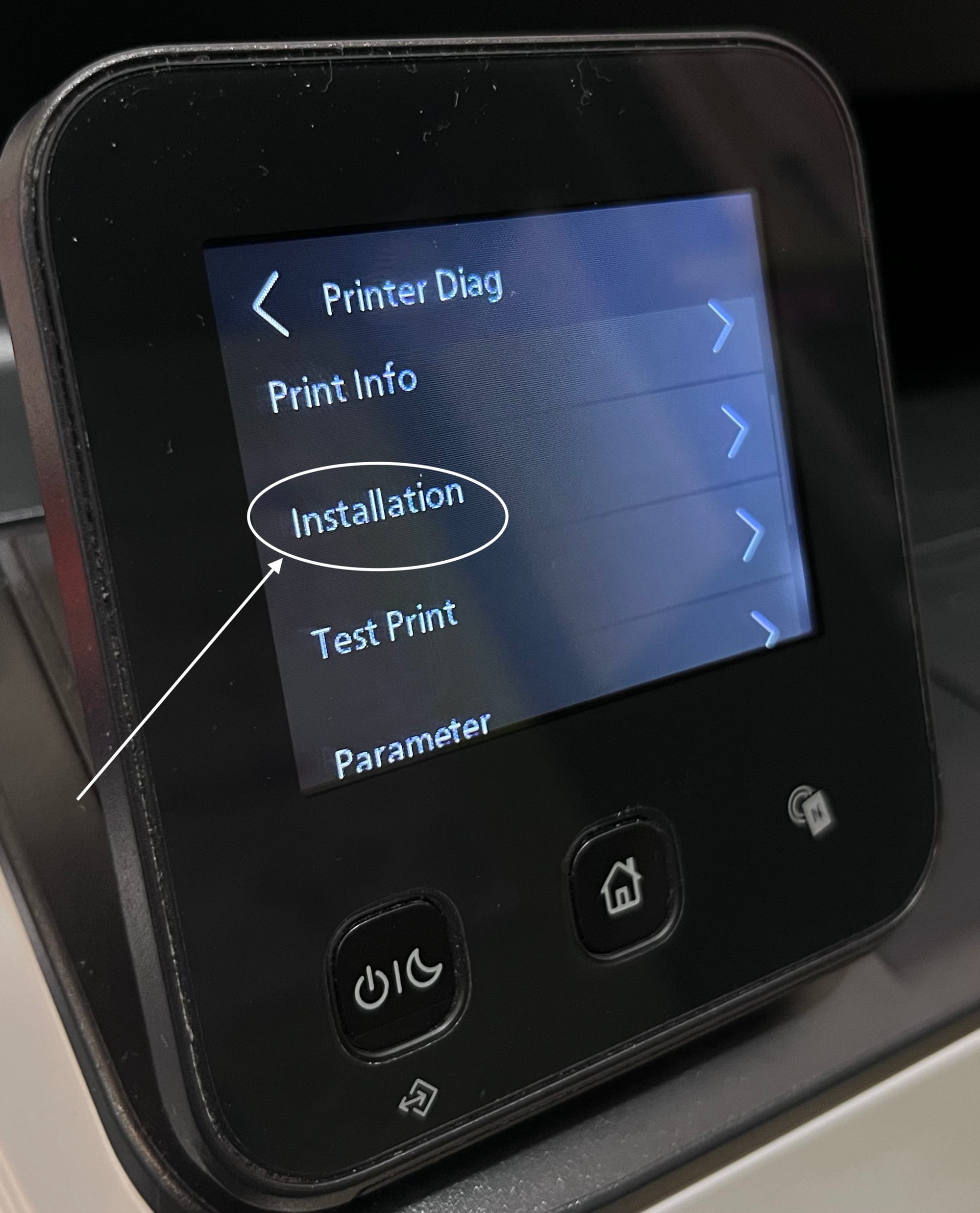
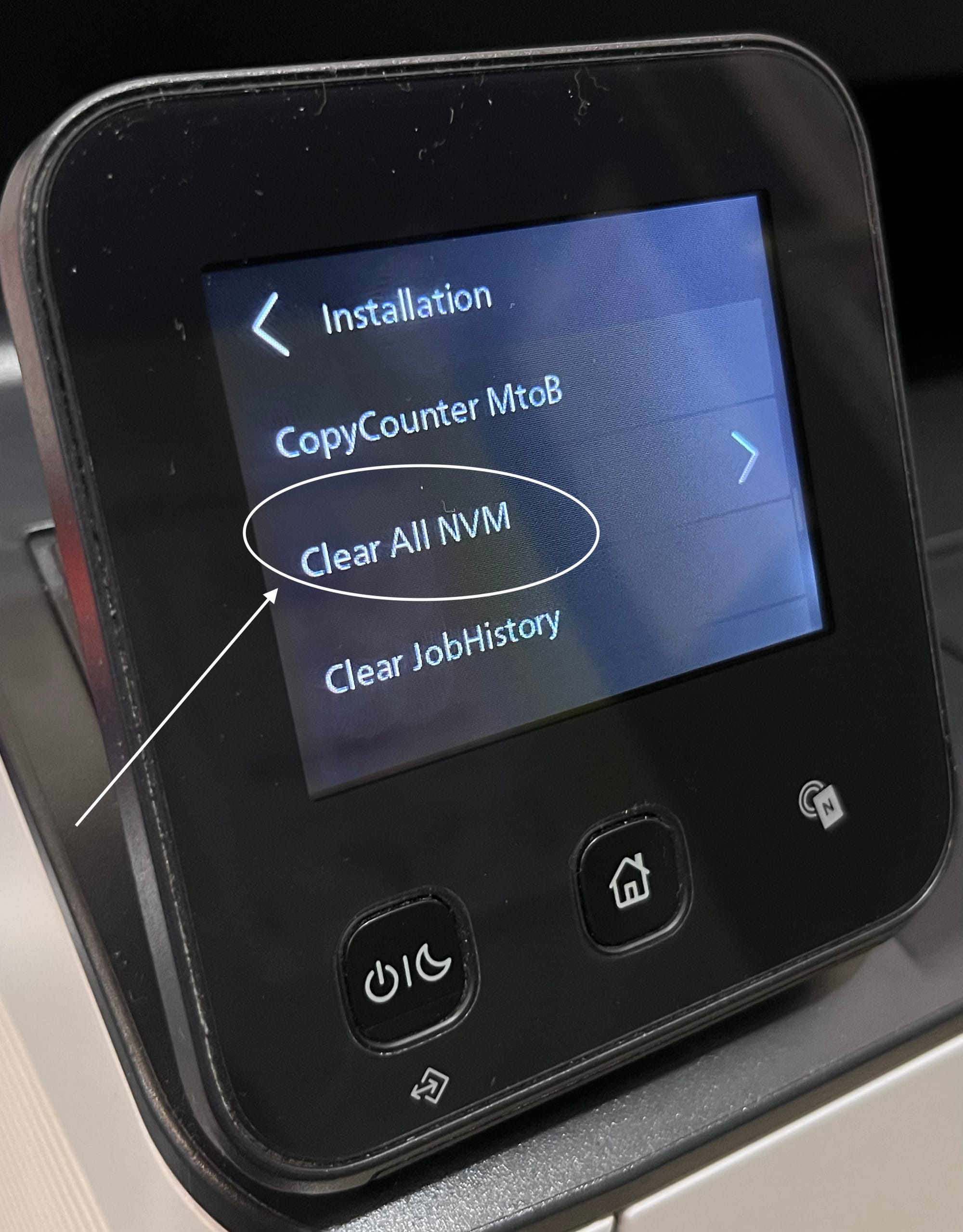
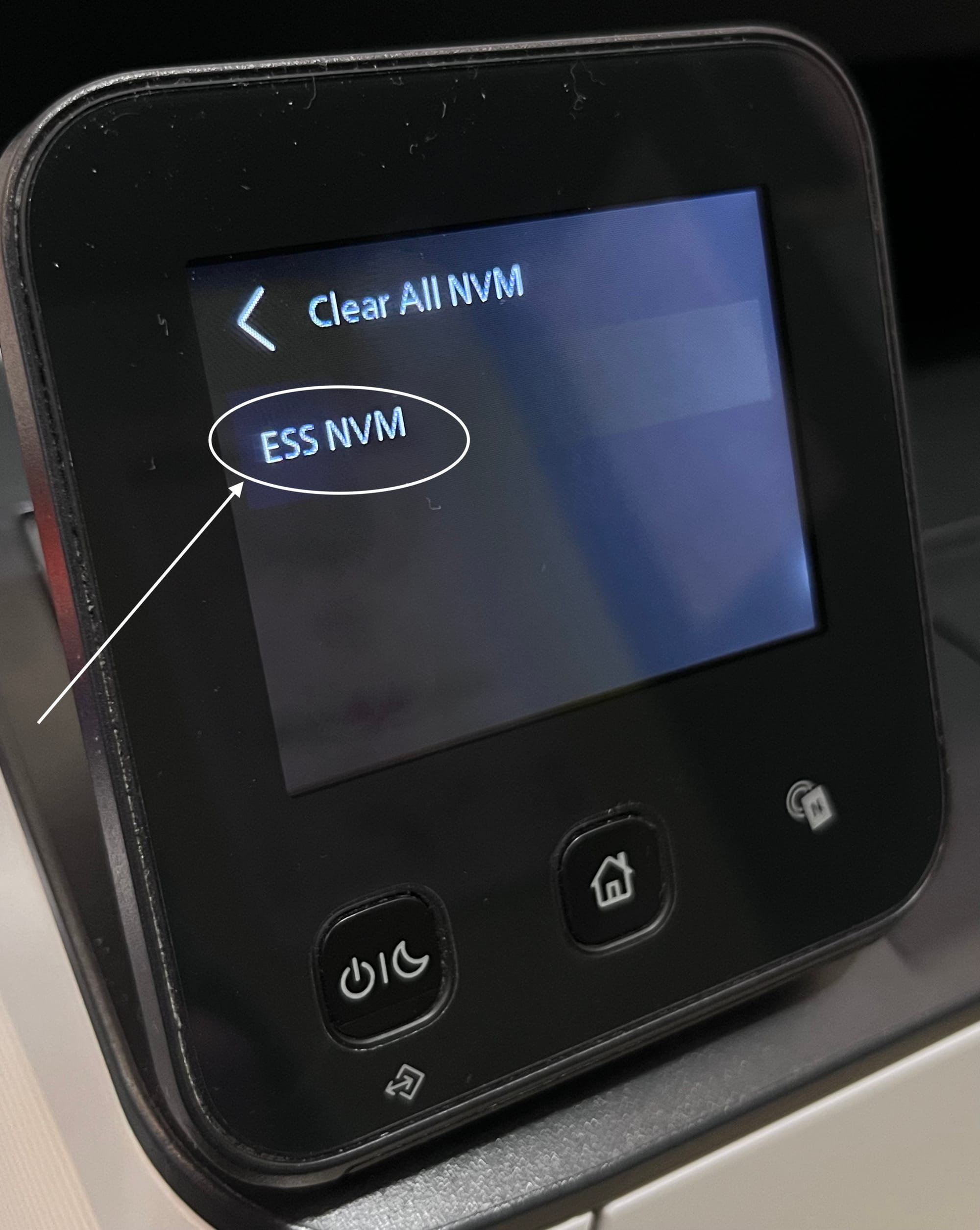
Steps 6
Step 6: The Menu
1. Tap Printer Diag
2. Tap Installation
3. Tap Clear All NVM
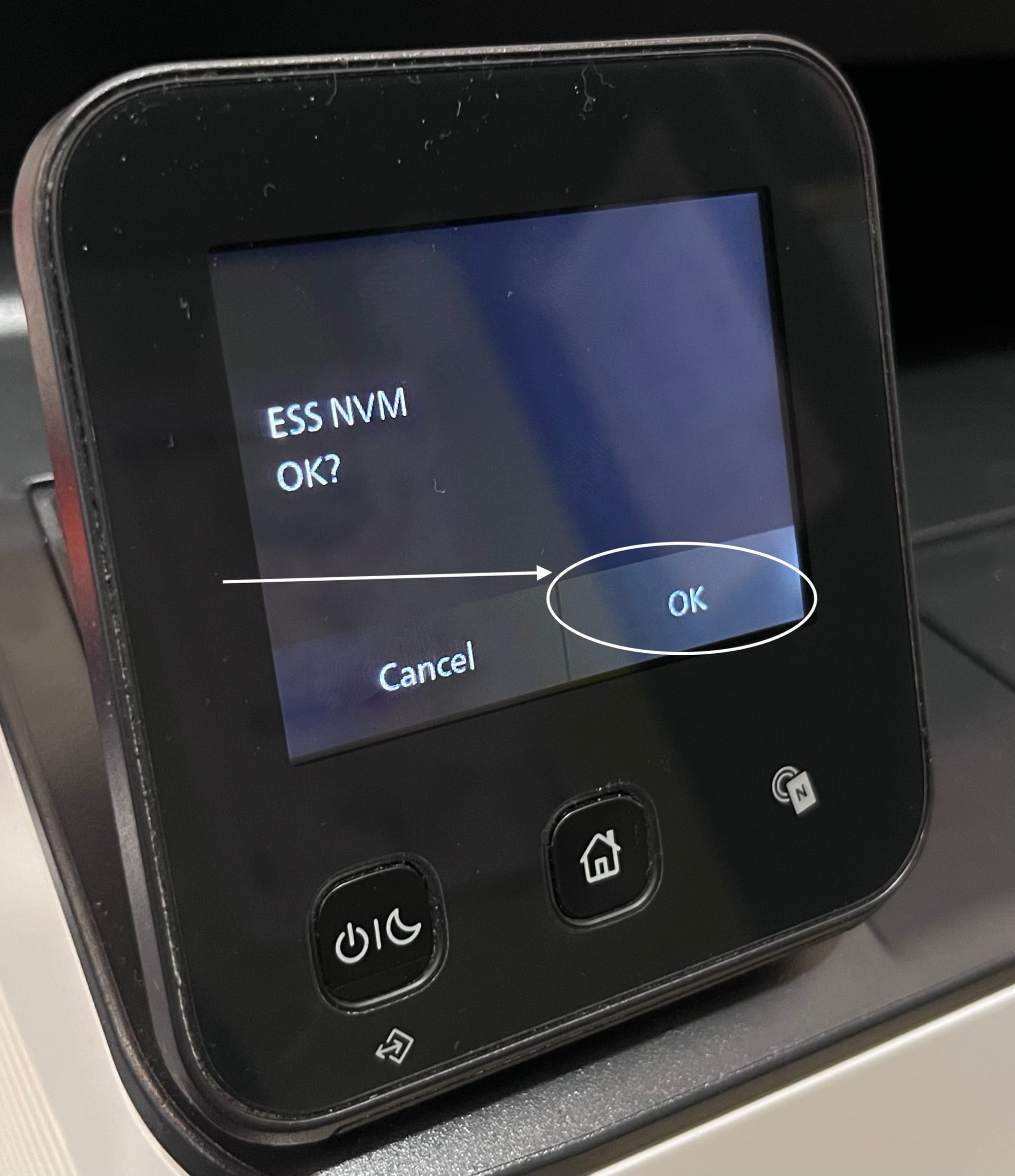
4. Tap ESS NVM
5. Confirm OK when it asks if you’re sure.
Step 7: Exit and let it reboot
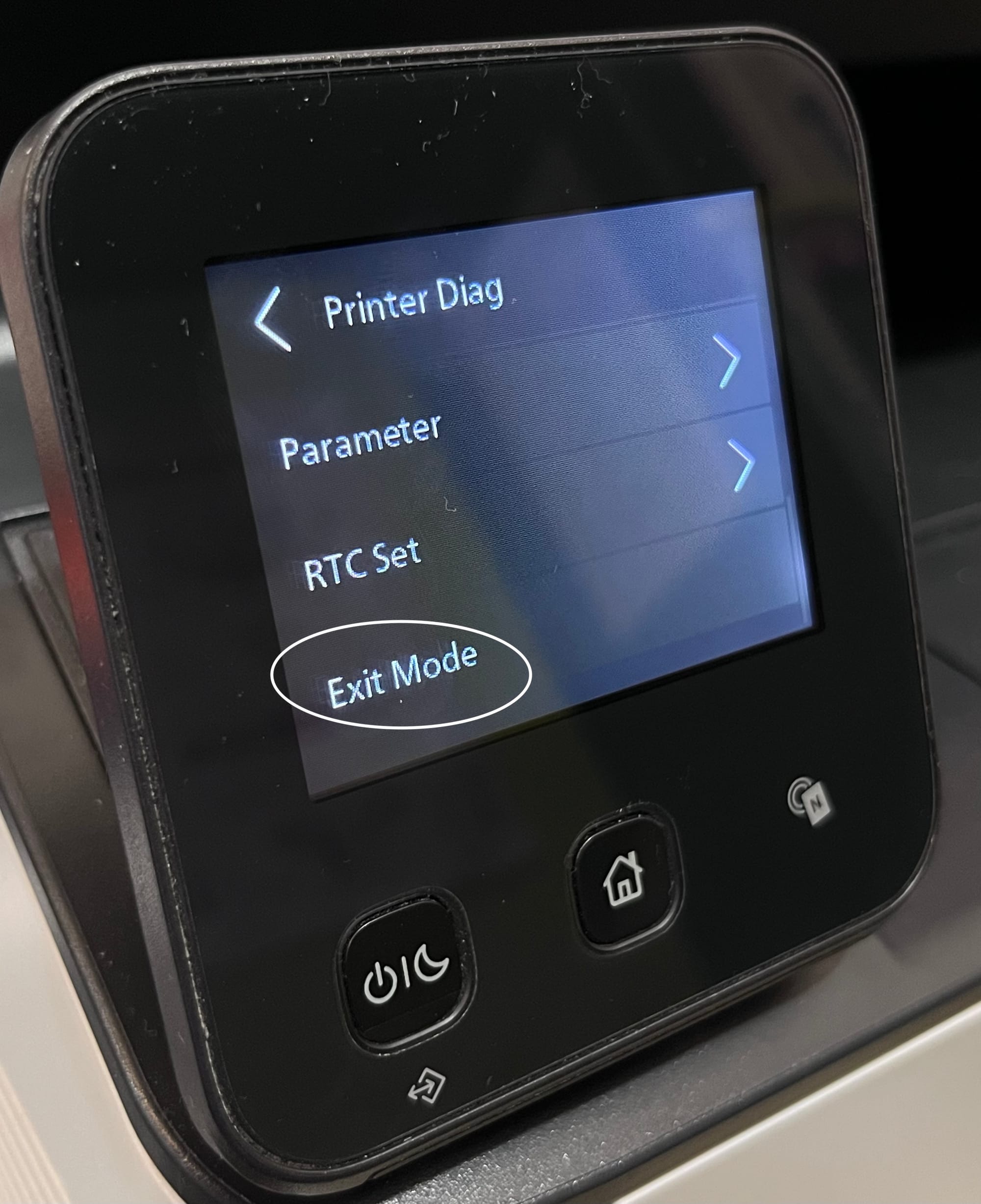
Once it finishes loading, tap the back arrow to go back to Printer Diag. Scroll down and choose Exit Mode. The printer will restart itself. When it comes back up, it’s basically fresh from the factory, including the admin credentials.
Logging back in
After the reset:
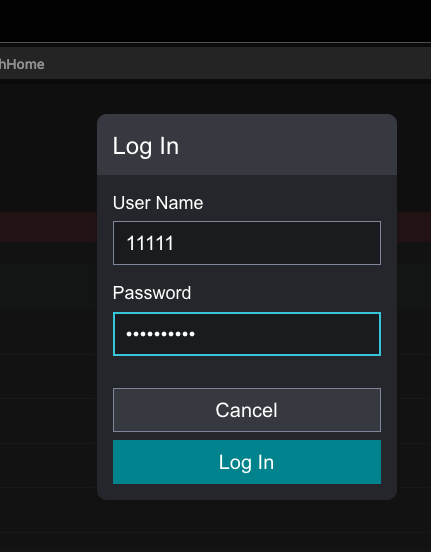
- Browse to the printer’s web UI at its IP address.
- Default admin account should be back to something like:
- Username:
11111 - Password: Serial Number of the Printer (which can be found on the printer by going to
Device>Aboutvia the touch screen)
- Username:
Postscript
As a small postscript, it’s hard not to rant a bit about how ridiculous this whole process is from a consumer‑rights perspective. When a perfectly good machine is effectively bricked just because the admin password is unknown, that’s not really about “security” anymore – it’s about control.
A printer that physically works but is locked behind undocumented service menus and secret technician codes is, in practice, a form of vendor lock‑in: you’re pushed toward paid service calls or replacement hardware instead of being empowered to fix your own device. For something as mundane as a small office printer, that’s wildly disproportionate to the actual risk profile.
This is exactly why “right to repair” and broader digital consumer rights matter. If manufacturers are going to sell devices into homes and small offices, they should publish full instructions for resetting them, provide tools to clear passwords safely, and design recovery paths that don’t require drilling down obscure Reddit threads Otherwise, we’re all just renting functionality from vendors who can, intentionally or not, lock us out of equipment we legally own.
Sources/Reference:
Disclaimer
This article is shared for informational and educational purposes only and does not constitute legal, technical, or professional advice. You follow any procedures described here entirely at your own risk, and there is no guarantee they will work in every situation or with every firmware version. Performance of any action set out herein on your printer may affect your warranty, maintenance contracts, or compliance with your organisation’s policies. You are responsible for ensuring you have the right to administer and modify the device, backing up any important data or configuration, and complying with all applicable laws, agreements, and internal rules before you proceed.
Enjoyed this post?
If it helped, consider leaving a tip - help keep the lights on!
Secure payment by Stripe. Accepts Apple Pay, card & more.